.svg@webp)
3D Point Clouds in Pixpro: How to Convert and Export Spatial Data
 Lukas
Zmejevskis
Lukas
Zmejevskis
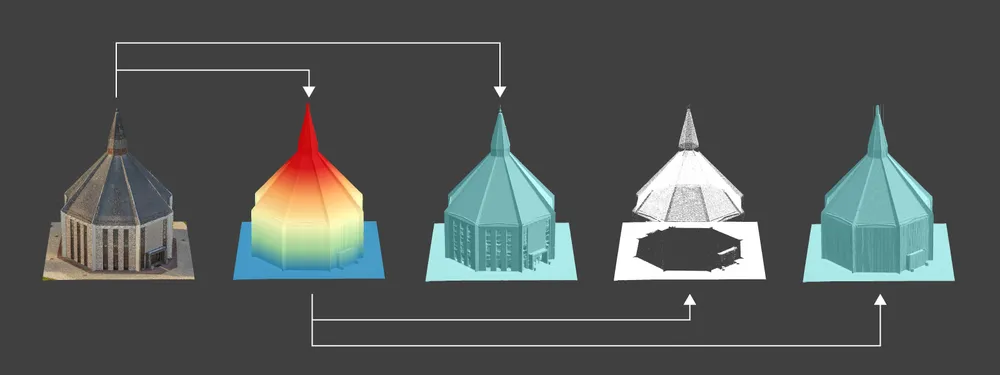
Photogrammetry software produces several types of spatial outputs, but the dense 3D point cloud is the foundation of them all. In Pixpro, the dense point cloud acts as the base dataset from which every other derivative is generated. A 3D point cloud is exactly what the name suggests: a collection of points positioned in three-dimensional space, representing the captured scene. Each point carries local or geographic coordinates, giving the dataset real or relative scale. The point cloud is the most fundamental spatial data format in the 3D reconstruction workflow.
3D Data Types in Pixpro
While the dense point cloud is the primary product, it is not the only spatial format available.
A 3D mesh is generated from the point cloud after multiple algorithmic passes. The software converts points into vertices and then into surfaces. The mesh is therefore a structured representation derived directly from the original point cloud.
Digital elevation maps are also derived from the same data. In this case, the three-dimensional information is projected into a 2.5D raster format, typically exported as a GeoTIFF height map. Although technically raster data, elevation maps still represent spatial geometry and can be visualized in three dimensions. A digital elevation map is also required to produce a true or photorectified orthophoto image, which has no perspective distortion.
Finally, there are the vectors that we as users draw: points, lines, and polygons. All these outputs originate from the same coordinate framework. They are different representations of the same reconstructed scene or added elements.
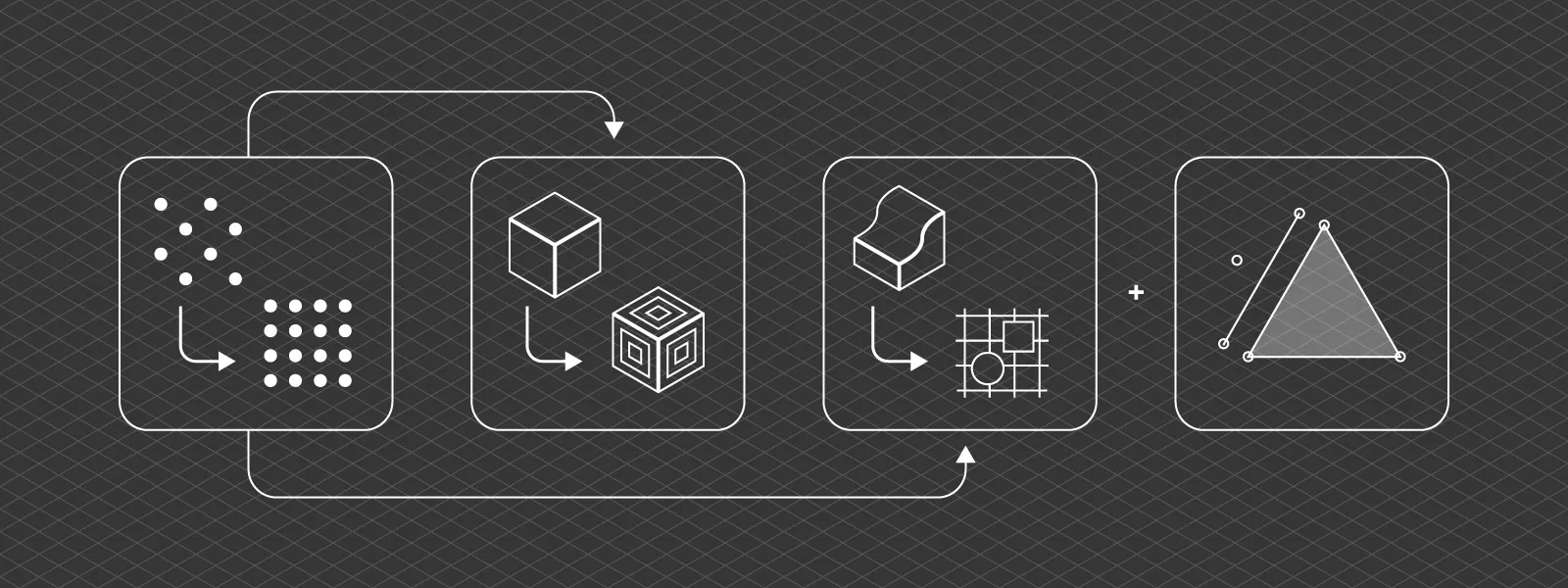
Point Clouds, Meshes, and Elevation Maps
Each format serves a different purpose.
Linear measurements can be performed directly on the point cloud even in early processing stages. However, measurements are often clearer and more intuitive on a fully textured mesh.
Volumetric measurements usually require an elevation map. If one is not already present, Pixpro may generate it automatically in the background.
Despite their practical differences, all these formats share one fundamental property: they exist inside a defined coordinate system. We can change coordinate systems at any point while using the software. However, keep in mind that some layers will be lost when doing so in an open project. More specifically, everything related to digital elevation models will be deleted. In practice, this is usually a negligible issue due to the speed at which new elevation models can be generated.
Coordinate Systems and Data Transformation
Every Pixpro project operates within a coordinate system. This may be a local reference system or a geographic coordinate system, but in all cases, every point, vertex, and pixel is positioned within that spatial framework.
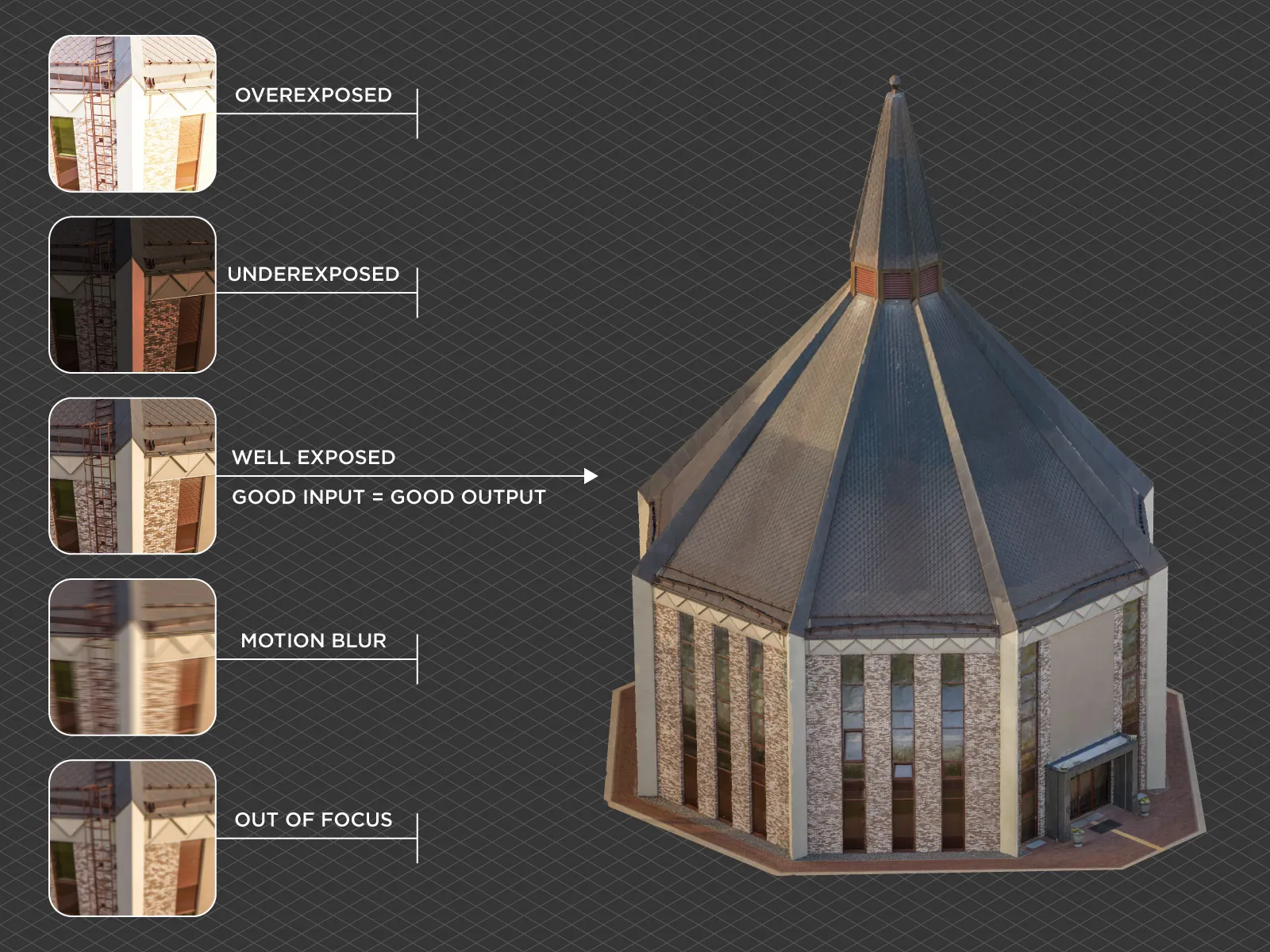
Because meshes, point clouds, and elevation maps are derived from the same base data, they share the same coordinate definition. This makes the system reliable and logical. If we have objects in the set system, we can transform them without losing accuracy. However this is a double edged sword. A project's spatial accuracy will only be as good as your input data - so that is your photos and ground control points. If there are issues with input data - this will reflect in your framework as bad position, bad scale or distorted geometry.
 Data Conversion and Export in Pixpro
Pixpro photogrammetry software includes the necessary tools to clone and convert spatial data layers, even if some of them may appear unusual at first glance.
We can clone the sparse point cloud as dense. A sparse point cloud contains significantly fewer points than the dense cloud, as these are only the tie points between photos. However, in some cases this reduced dataset is sufficient for quick results. To skip dense point cloud generation, we can clone the sparse cloud and proceed from there. To do this, right click in the Layers panel and choose Clone as Dense Point Cloud.
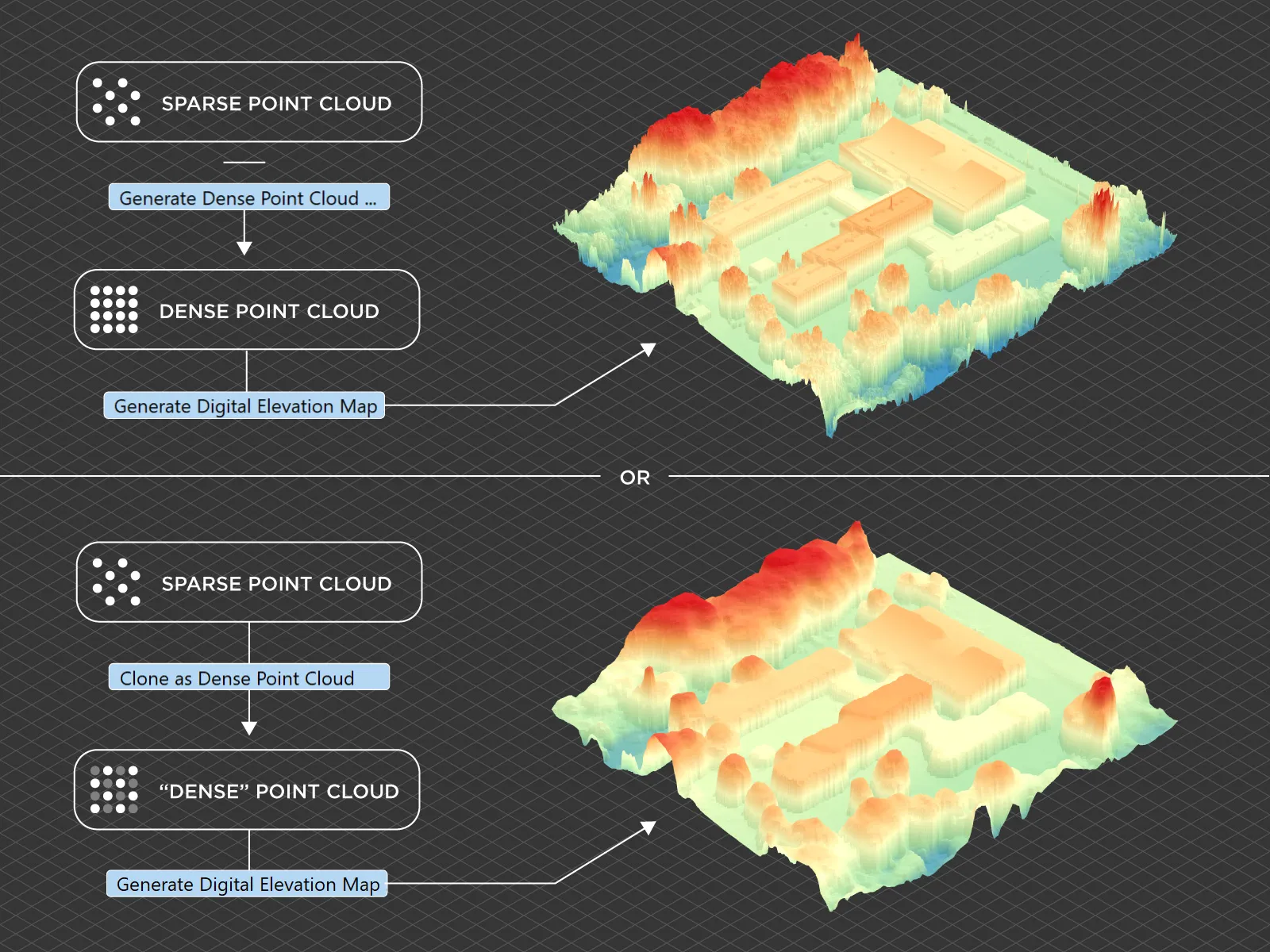 A dense point cloud can be turned into a 3D mesh or a digital elevation map. These are standard processing steps accessible from the Workflow menu. A simple workflow explanation can be found here: -
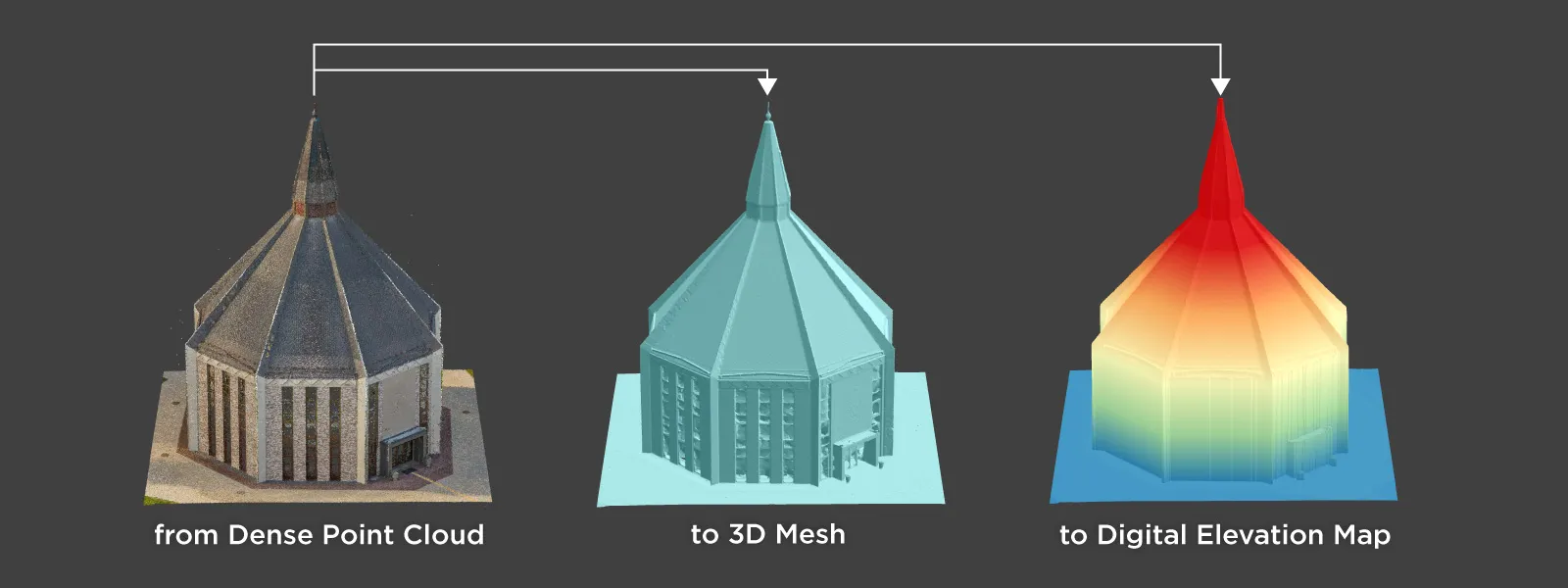 A digital elevation map can also be converted into a mesh or into a grid-like point cloud. These conversions may seem unusual, but there are rare use cases where third party software cannot use raster images and instead requires 3D points or surfaces. In such cases, these tools allow the height map data to be moved into a fully three-dimensional format. To create a mesh or a point cloud from a digital elevation map, right click on the layer and choose the appropriate option.
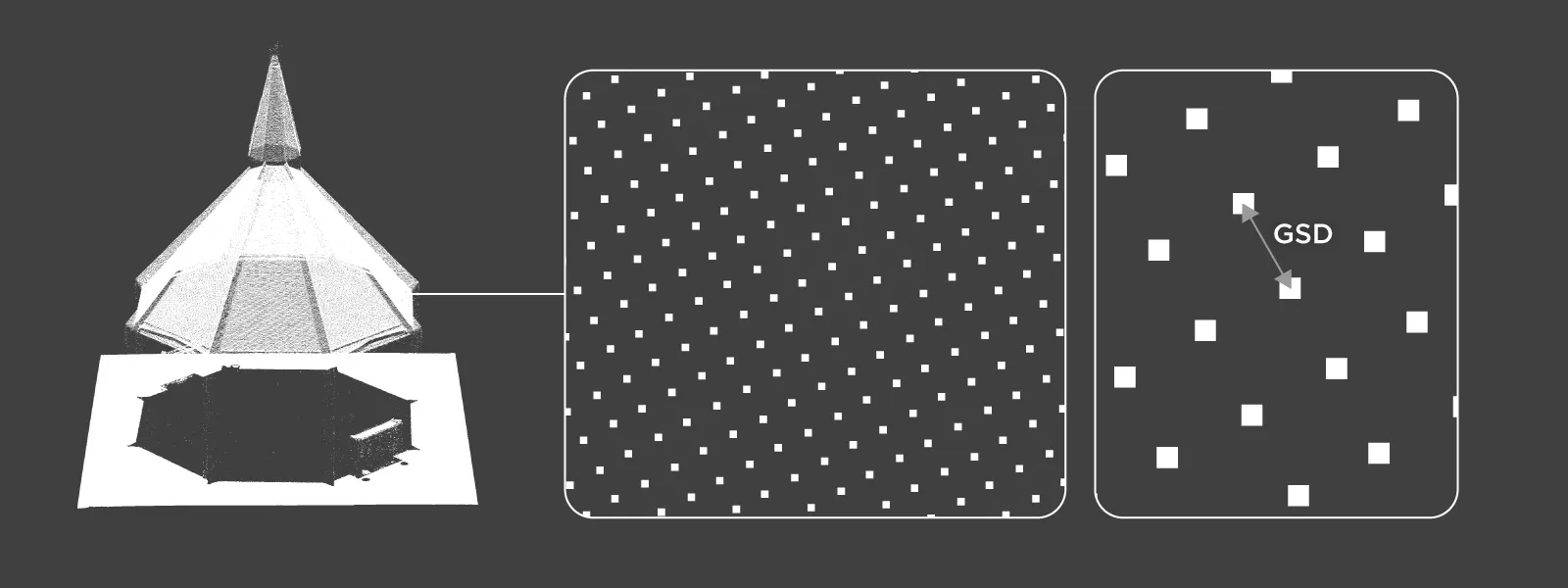
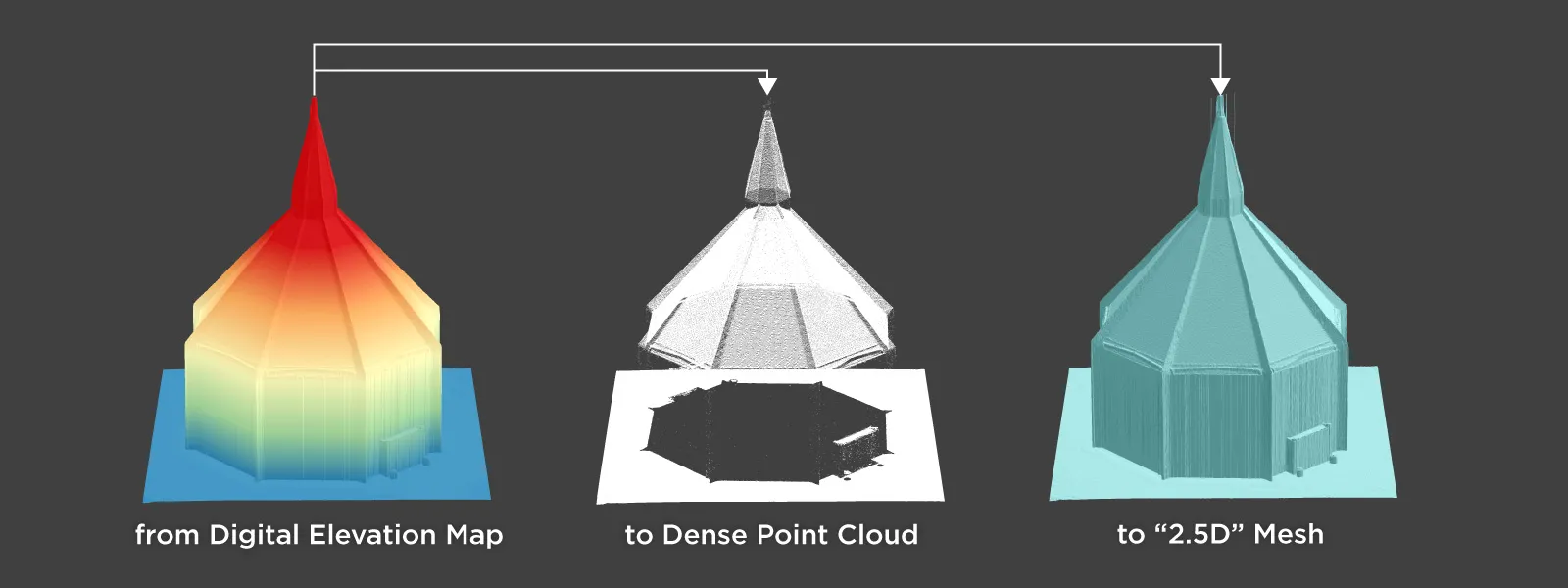 When creating a point cloud from a digital elevation map, the result is a grid-like structure with points spaced according to the ground sampling distance of the elevation model. The points are evenly distributed at the correct horizontal spacing and placed at the appropriate Z elevations. This feature has proven useful when working with certain Autodesk products that do not conveniently support raster height maps.
 Exporting all these layers is also a matter of right clicking and choosing the appropriate format, coordinate system, and file location. Points, lines, and polygons drawn within the project can also be exported. A more detailed export guide can be found here: -
Reimporting Data to Validate Coordinate Transformations
An often overlooked workflow in Pixpro is reimporting exported data back into the same or a similar project. This becomes useful when testing coordinate transformations. For example, after exporting data in a different coordinate reference system, reimporting it allows verification that the transformation behaved as expected.
In everyday workflows, reimporting is rarely necessary. However, in professional mapping or engineering contexts, validating coordinate accuracy can prevent alignment issues downstream. Testing transformations through reimport is a practical method to confirm that spatial data remains consistent across systems.
Conclusion
Point cloud transformation in Pixpro is fundamentally about managing spatial reference systems correctly. The dense point cloud serves as the foundation for every mesh, elevation map, and vector layer generated in a project. Because all derived data shares the same coordinate definition, careful handling of coordinate systems during export is essential.
Understanding how to clone, convert, export, and validate spatial layers ensures that your data behaves predictably in external GIS, CAD, or engineering software. Once coordinate management becomes part of your workflow, spatial data moves from being a visual reconstruction to becoming reliable geospatial information. As reliable as your input data at least.
Photographer - Drone Pilot - Photogrammetrist. Years of experience in gathering data for photogrammetry projects, client support and consultations, software testing, and working with development and marketing teams. Feel free to contact me via Pixpro Discord or email (l.zmejevskis@pix-pro.com) if you have any questions about our blog.
Related Blog Posts
Our Related Posts
All of our tools and technologies are designed, modified and updated keeping your needs in mind
Why Choose Pixpro Photogrammetry Software? Practical Comparison
There is no shortage of photogrammetry software today. From well established industry tools to newer cloud based solutions, the choice is not exactly obvious, especially for someone just getting started. Most options promise high accuracy, automation, and ease of use, and to some extent they all del
 Pixpro Team

How to Create and Import a KML File in Pixpro Waypoints
We are continuing our improvements to the Pixpro Waypoints service and bringing a few small updates. Pixpro Waypoints is a service that allows automatic photogrammetry flights with consumer grade DJI drones using a bit of workaround magic.
Pixpro Team
Pixpro 1.7.11 - Seamless Model Sharing
We are keeping the development cycle relatively short these days, so here is a new update to our photogrammetry software. Update 1.7.11 brings improvements related to our cloud service.
Pixpro Team
Ready to get started with your project?
You can choose from our three different plans or ask for a custom solution where you can process as many photos as you like!
Free 14-day trial. Cancel any time.