.svg@webp)
How to Create and Import a KML File in Pixpro Waypoints
 Lukas
Zmejevskis
Lukas
Zmejevskis

We are continuing our improvements to the Pixpro Waypoints service and bringing a few small updates. Pixpro Waypoints is a service that allows automatic photogrammetry flights with consumer grade DJI drones using a bit of workaround magic. All drones with modern waypoint support can use this service and achieve perfect overlap results for 3D models or other mapping related tasks.
In this article, we explain how to create a KML file, how to export it from Google tools, and how to import it into Pixpro Waypoints for automated photogrammetry flights.
New Update - KML Import and Coordinate Marker
This time we are introducing a small update to the service. Firstly, we now display an exact place marker for the entered address or coordinates. This allows for more precise orbital or grid drawing, especially if the underlying map imagery is outdated. Previously, we simply centered the map on the input address without any visual confirmation. Now the familiar red place marker appears.
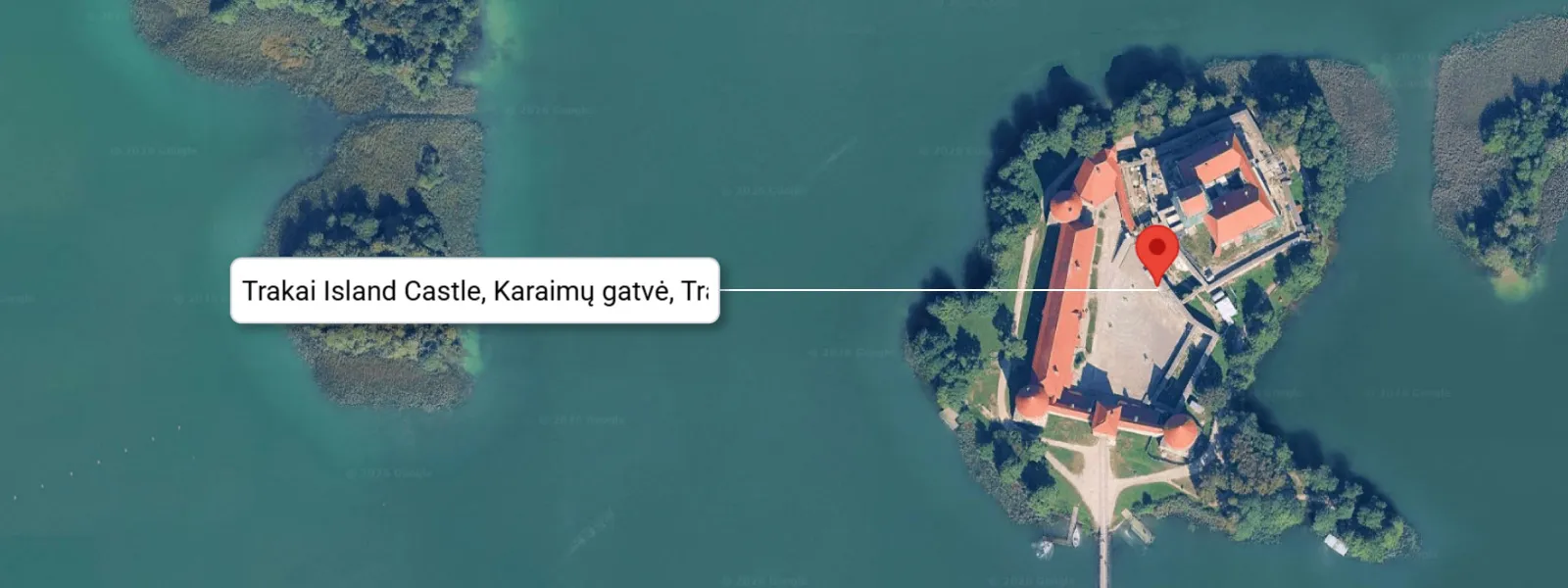 The second update is the capability to upload a KML polygon. This stems from the same issue of maps being outdated in rapidly shifting landscapes such as mines, roadworks, and construction areas. After all, these are common use cases for photogrammetry, not to mention seasonal shifts on natural features such as fields or water bodies.
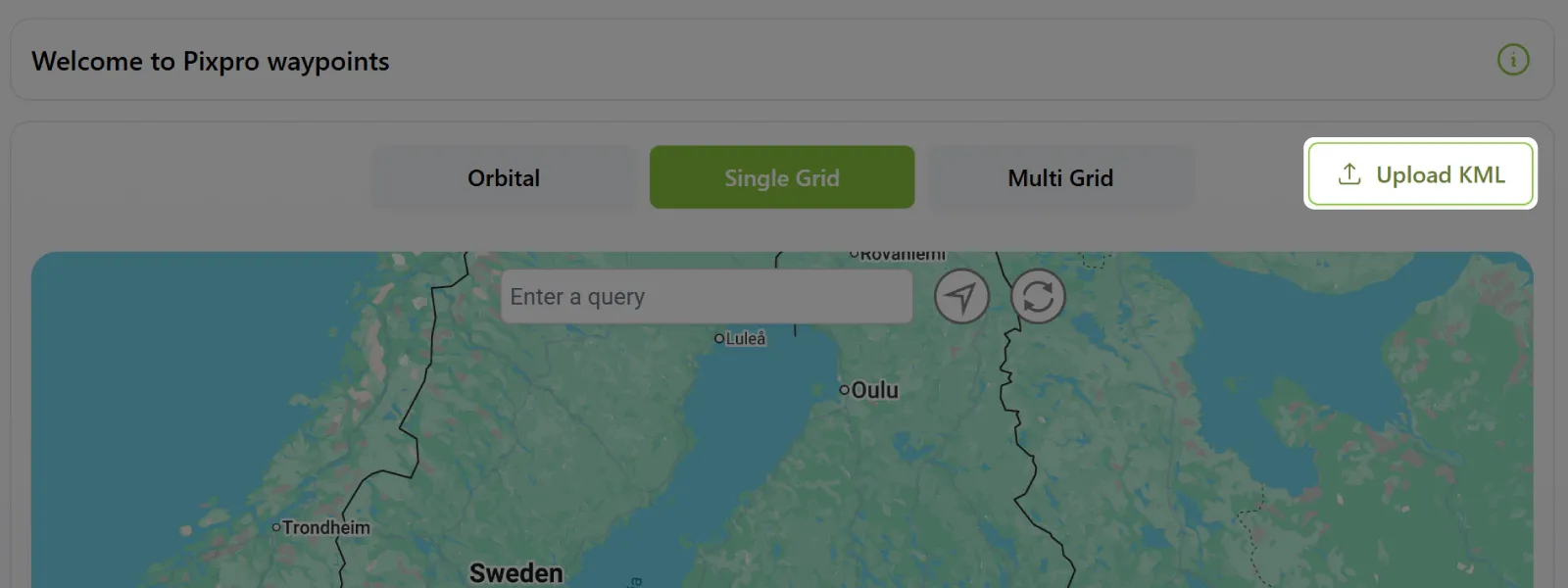 At the moment, we support Google formatted KML files, meaning anything coming from Google Earth, Google Maps, or Google Maps API related services. We plan to make the upload system more flexible in the future, accepting less cleanly formatted KML files from other services. Google is the standard, but there are many sources of this type of geodata file.
Future Roadmap
The Pixpro Waypoints roadmap consists of improving the KML upload system in the near future, as described above. For more major features, we plan to eventually add:
Plan storage and saving. For those who perform repeatable flights and do not want to store files on their computers or remote controllers.
Additional flight plan types. Especially plans that include vertical movement. Our current trio covers many standard scenarios, but there are additional flight types that could round out the service.
Interface improvements. We have several ideas on how to optimize the current web interface.
 What Is a KML File and How Does It Work?
KML means Keyhole Markup Language and it represents a very simple XML file with coordinates, points, lines, or polygons that describe geographic locations on Earth. In practical terms, it is just a text file that tells mapping software where something is and how it should be displayed. The structure is human readable, which means you can open it in a basic text editor and see the latitude, longitude, altitude values, and styling instructions written plainly inside tags.
KML files are most commonly associated with Google Earth, but they are supported by many GIS and mapping tools. They can contain simple placemarks, full boundary polygons, flight paths, camera positions, or overlays such as images draped over terrain. For photogrammetry work, KML files are often used to define boundaries, export flight plans, or share spatial references between software platforms.
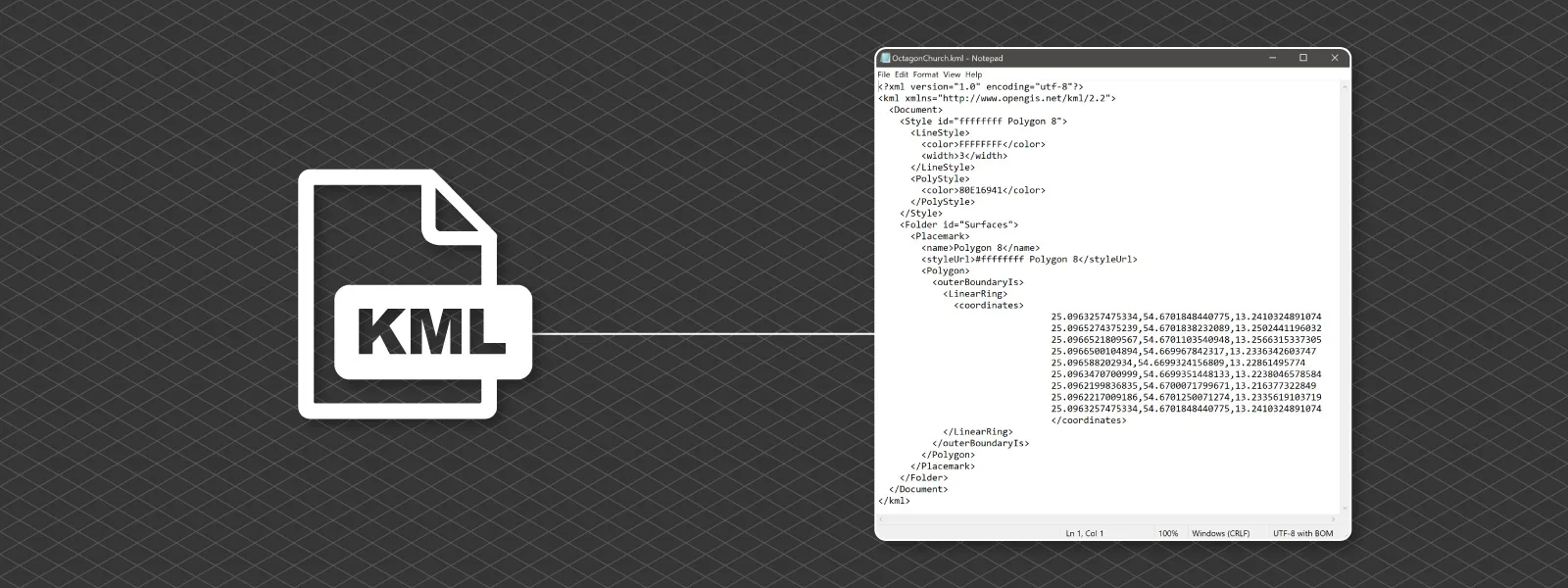
In essence, a KML file is a lightweight container for geographic information. It does not hold imagery or heavy datasets. It simply describes where things are, and the coordinates are always stored in the WGS 84 geographic coordinate system. Because KML files use WGS 84 latitude and longitude, they are directly compatible with most consumer GPS systems and mapping platforms.
What Is the Difference Between KMZ and KML?
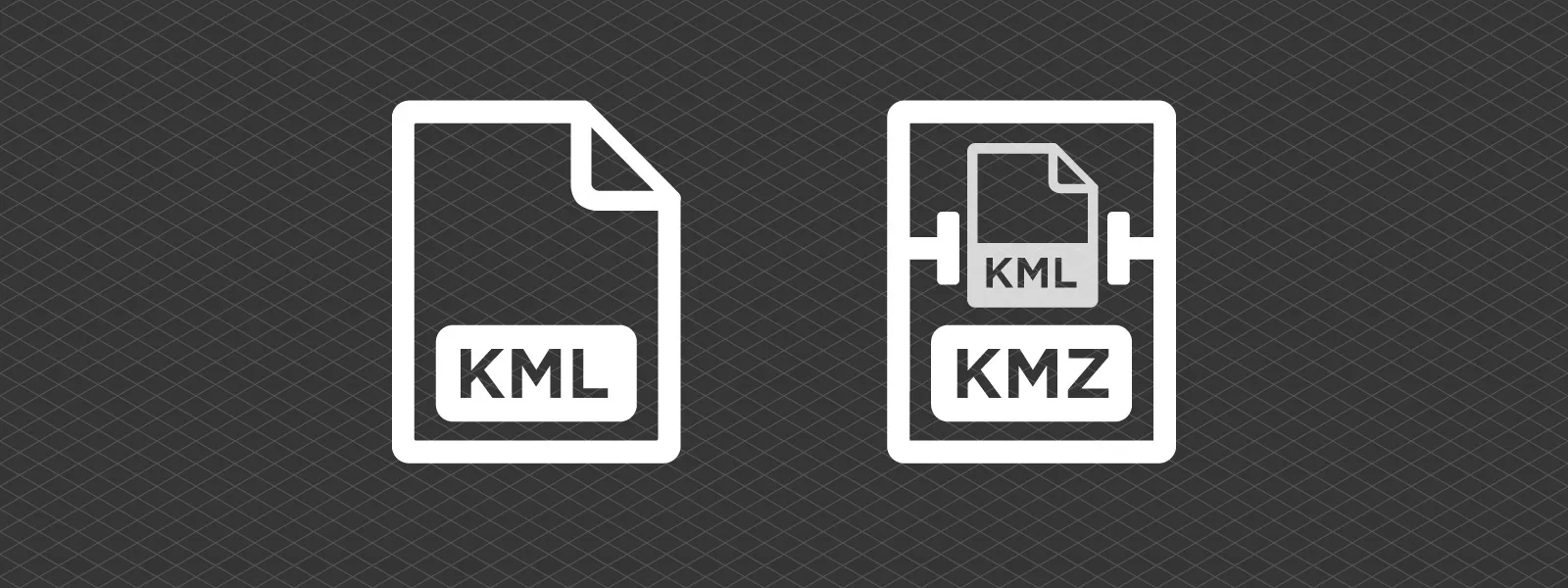
KMZ is simply a compressed version of a KML file. Technically, it is a ZIP archive that contains a KML file and, optionally, additional assets such as images, icons, or overlays referenced by that KML. Instead of linking to external files, everything can be bundled together into a single package. This makes KMZ more convenient for sharing complete map visualizations, especially when custom icons or image overlays are involved.
Pixpro Waypoints exports KMZ flight plan files because that is what the DJI Fly app and DJI drones use internally. There is a KML file inside; however, it is a proprietary DJI formatted file, structured according to DJI standards. You cannot reupload, reuse, or view this KML waypoint file outside DJI drones or their software.
 How to Create a KML File Using Google Earth
Google Earth online or desktop is a convenient intermediary tool for creating a KML polygon for Pixpro Waypoints and other purposes. The workflow is simple and can be done in a few steps:
-
Go to Google Earth at https://earth.google.com/web
-
Click on the + New button on the left side of the screen and choose New Map.
-
Click on the squiggly line icon labeled Add path or polygon in the top toolbar above the map view.
-
Draw a polygon on the map wherever you need it.
-
Save your project or click File and then Export as KML.
-
Name your file and save it on your computer.
When doing this, only draw a single closed polygon and it should work flawlessly. Google Earth also allows you to import your own data, which can then be used as a reference to draw your polygon before exporting.
You can also use Google My Maps:
-
Click on Create a New Map.
-
You will see a new untitled layer. Draw a polygon in that layer or import data from other sources.
-
When finished, click on the three dots and export data. Choose KML.
-
Save the KML file on your computer.
Both services allow uploading data in many different ways. You can upload text files with geolocation data, polygon files from other GIS software, and other common formats. It is not possible to cover all use cases here, but geospatial data is often interchangeable. Using Google Maps or Google Earth as an intermediary is a practical approach.
Lastly, you can use Pixpro to create a KML file from an existing scan. Simply draw a polygon in Pixpro Photogrammetry software and export it. This does require an existing scan, so it is useful when a more accurate flight plan is required after an initial preliminary scan.
How to Import a KML File into Pixpro Waypoints
Importing a KML file is as simple as pressing one button and selecting your file. If the file is compatible, the polygon will be drawn on the map and the view will automatically center on it. If the file is not compatible, it will be marked as invalid.
This is an important point. The uploaded polygon is for reference only. You still need to draw the flight plan areas or orbits in the usual manner. Pixpro Waypoints does not automatically generate flight plans from imported polygons.
Pixpro Waypoint Blogs List
I will use the opportunity to fill this paragraph with all past Pixpro Waypoints articles in a single neat list, within a few categories:
Core How To:
Pixpro Waypoints - Automated Photogrammetry for DJI Drones
How to Use Pixpro Waypoints - Step-by-Step Guide
Most Asked Questions - Pixpro Waypoints
Most Asked Questions - Pixpro Waypoints Part 2
Drone Specific:
DJI Mini 5 Pro - Aerial Scanning with Pixpro Waypoints
DJI Mavic 4 Pro - Pixpro Waypoints
DJI Air 3s - Automatic Flights with Pixpro Waypoints
DJI Mini 4 Pro - Multi-battery Scan with Pixpro Waypoints
DJI Air 3, Mavic 3 Pro - 3X Camera Orbits with Pixpro Wayoints
Additional Updates and How To:
Pixpro Waypoints Update - Orbitals and Height Offset
Multiple Overlapping Orbits - Pixpro Wayoints
Pixpro Wayoints Update - Multi Grids
Conclusion
You can use Pixpro Waypoints with any type of Pixpro license, including the free trial. With the articles mentioned above, you have all the information required to get started and fully understand how the service works.
The addition of KML import and precise coordinate markers makes planning more reliable in real world conditions where map imagery is not always up to date. Whether you are working on construction sites, mining areas, agricultural land, or other rapidly changing environments, having control over accurate boundaries improves both efficiency and consistency.
Photographer - Drone Pilot - Photogrammetrist. Years of experience in gathering data for photogrammetry projects, client support and consultations, software testing, and working with development and marketing teams. Feel free to contact me via Pixpro Discord or email (l.zmejevskis@pix-pro.com) if you have any questions about our blog.
Related Blog Posts
Our Related Posts
All of our tools and technologies are designed, modified and updated keeping your needs in mind

Why Choose Pixpro Photogrammetry Software? Practical Comparison
There is no shortage of photogrammetry software today. From well established industry tools to newer cloud based solutions, the choice is not exactly obvious, especially for someone just getting started. Most options promise high accuracy, automation, and ease of use, and to some extent they all del
 Pixpro Team
3D Point Clouds in Pixpro: How to Convert and Export Spatial Data
Photogrammetry software produces several types of spatial outputs, but the dense 3D point cloud is the foundation of them all. In Pixpro, the dense point cloud acts as the base dataset from which every other derivative is generated.
Pixpro Team
Pixpro 1.7.11 - Seamless Model Sharing
We are keeping the development cycle relatively short these days, so here is a new update to our photogrammetry software. Update 1.7.11 brings improvements related to our cloud service.
Pixpro Team
Ready to get started with your project?
You can choose from our three different plans or ask for a custom solution where you can process as many photos as you like!
Free 14-day trial. Cancel any time.